Users Profile Settings
This section provides URLs that allow end users to access their account management interface within your tenant. Users can manage their profile settings, authentication methods, and other account-related preferences through the profile portal.
To enable profile access, at least one public client must be configured for this tenant. The client's redirect URL must be properly configured to point to the profile endpoint.
Overview
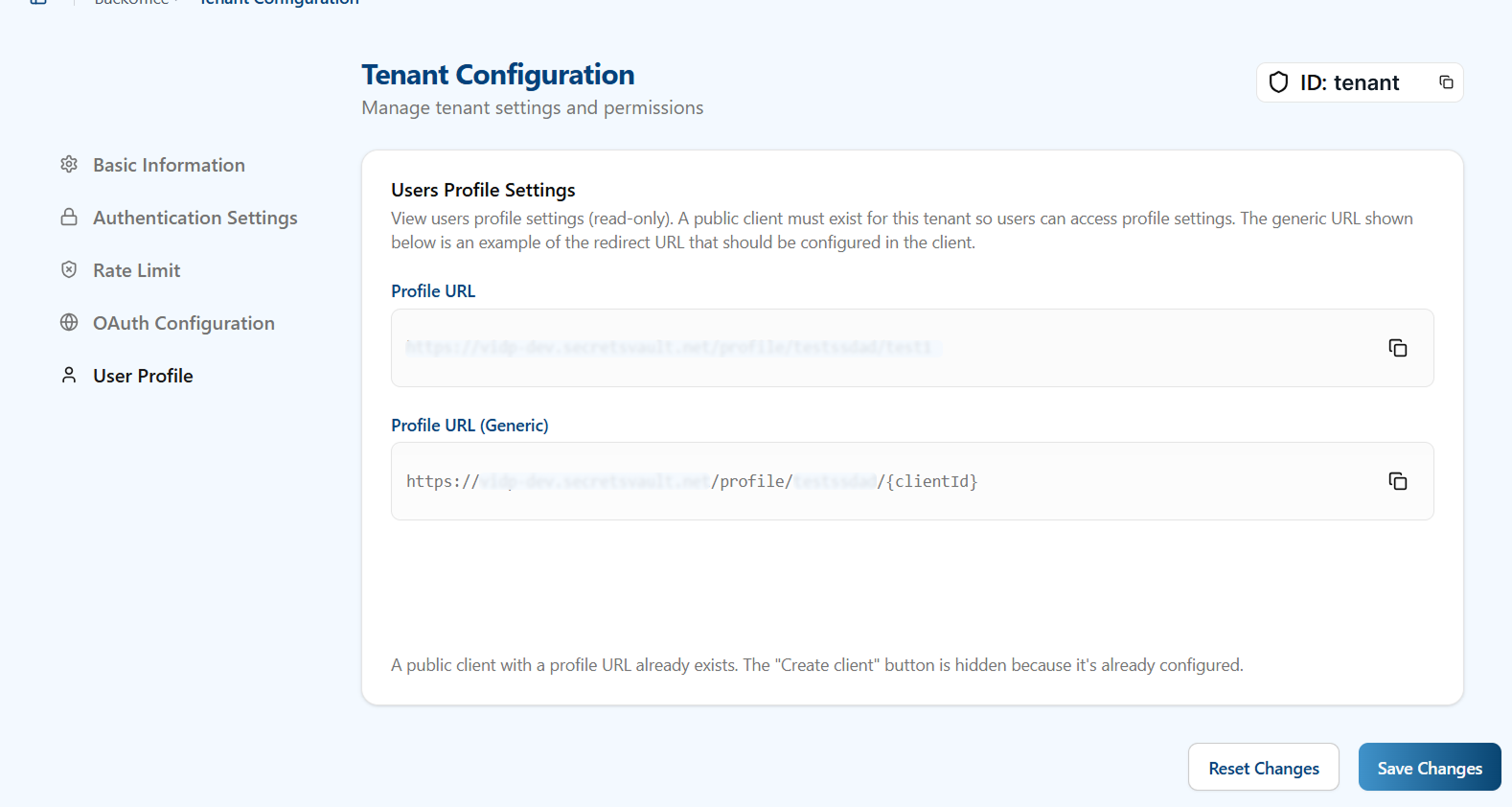
Two URL options are available in this section:
- Profile URL: A fully resolved, tenant-specific URL for a particular public client. Use this when you have a single public client or when linking from within that specific client application.
- Profile URL (Generic): A URL template that includes a
{clientId}placeholder (for example:https://{vp_idp_url}/profile/<tenant>/{clientId}). Use this template when you need to generate profile links for multiple public clients across your tenant.
Both fields are read-only and include a copy action in the UI for convenient access.
Configuration Paths
Path 1: Manual Client Creation with Generic URL
If you don't yet have a public client configured for profile access:
- Copy the Profile URL (Generic) from this section
- Navigate to the Client Management section
- Create a new public client
- Configure the client's redirect URL to point to the profile endpoint (using the template you copied)
- Save the client configuration
After completing these steps, the Profile URL (specific) will become available in this section.
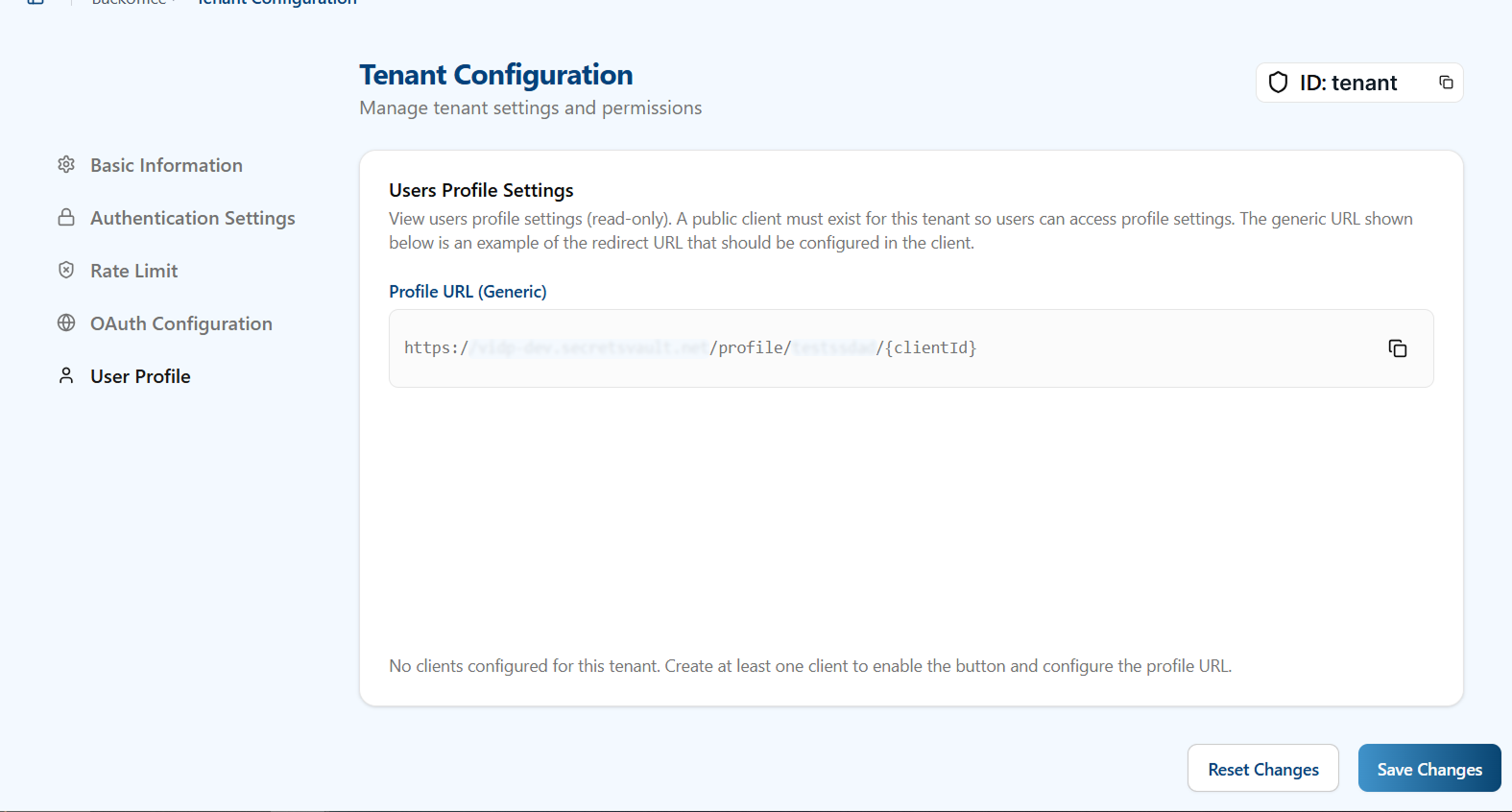
Path 2: Quick Client Generation for Profile
Once you have at least one public client, an alternative approach is available:
- Review your current Profile URL (Generic) configuration
- A Create client button will appear in the UI, pre-configured for profile access
- Click to create and automatically register a new public client for profile management
- The new client will be immediately available for profile URL generation
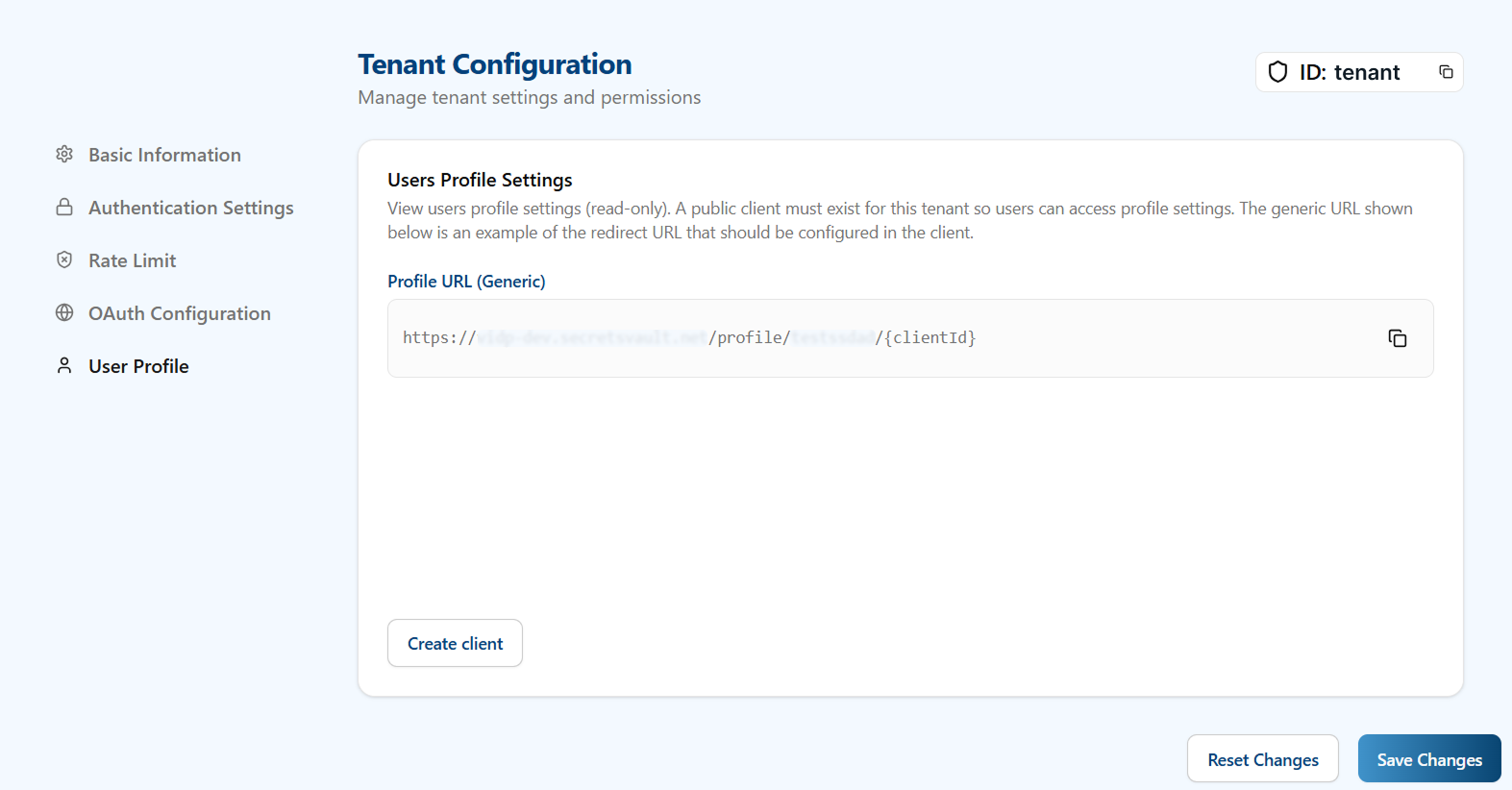
What Users See
Once configuration is complete, end users can access their account management interface and:
- Access their profile using the provided Profile URL
- Manage account settings and preferences
- Update authentication methods
- View and manage active sessions across different devices – Users can see all their active sessions, including device information and location, and revoke sessions when needed
- Monitor their account activity and security
For a detailed guide on how users interact with the account management interface, including profile management and session handling, see the Account Management section in the User Portal Guide.