Authentication Settings
This section allows you to configure authentication features and user access permissions for your tenant.
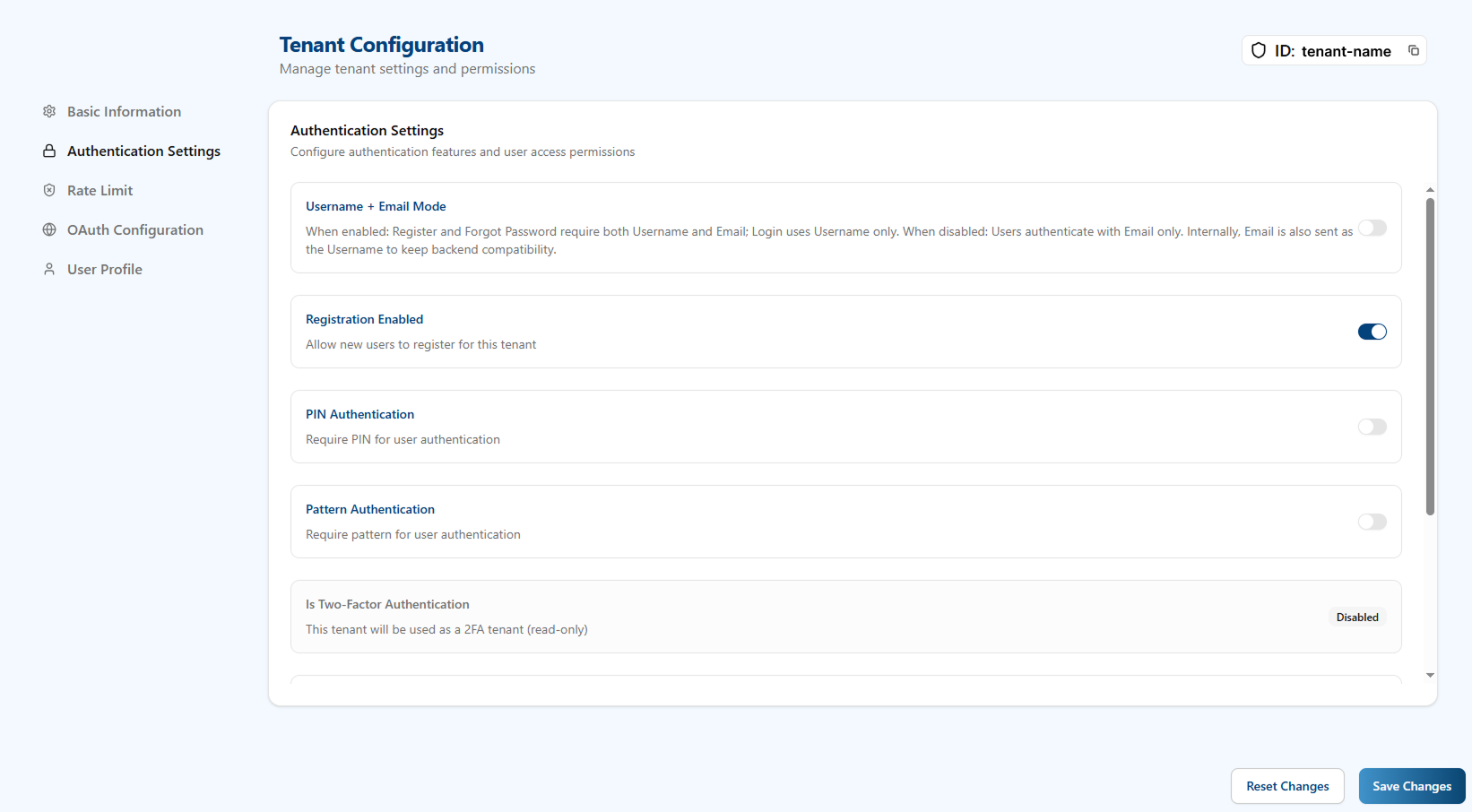
General Settings
- Username + Email Mode: When enabled, requires both Username and Email for Password-based login. When disabled, users authenticate with Email only. Internally, Email is also used as the Username to keep backend compatibility.

- Registration Enabled: Allows new users to register for this tenant. When disabled, only existing users can authenticate.
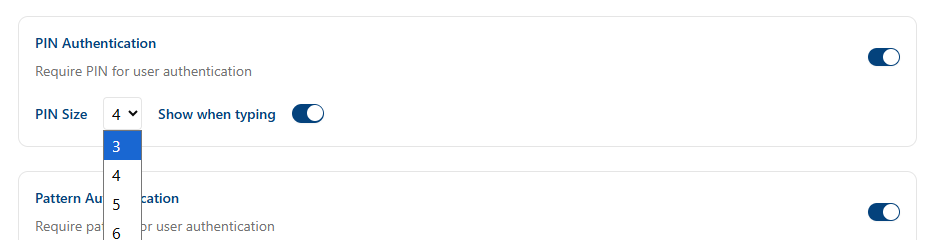
PIN Authentication
When enabled, requires PIN for user authentication.
- PIN Size: Configure the PIN length using the dropdown selector. Available options are 3, 4, 5, or 6 digits.
- Show when typing: Toggle to show or hide PIN numbers as the user enters them during authentication.
Pattern Authentication
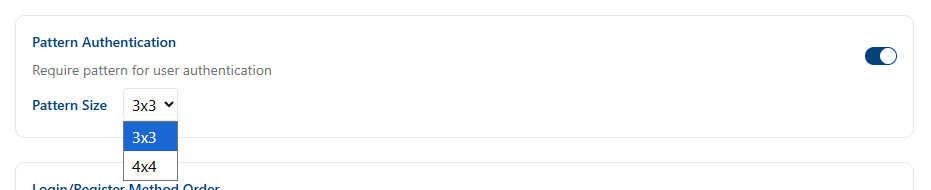
When enabled, requires pattern for user authentication.
-
Pattern Size: Configure the grid size using the dropdown selector. Available options are:
- 3×3: A 3-by-3 grid of points
- 4×4: A 4-by-4 grid of points
Users must connect at least 3 points in any direction and sequence to create their pattern.
Login/Register Method Order
If both PIN and Pattern authentication are enabled, you can customize the default order in which they appear on the login/register screens. Use drag and drop to reorder the authentication methods according to your preference.

Two-Factor Authentication
- Is Two-Factor Authentication: A read-only status indicator showing if this tenant is configured exclusively for 2FA (Second Factor Authentication) flows.
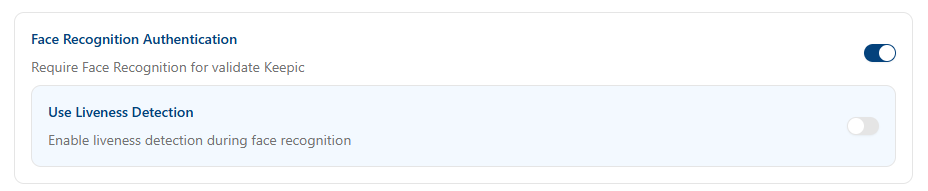
Face Recognition Authentication
When enabled, requires Face Recognition to validate the user's image as part of the authentication flow.
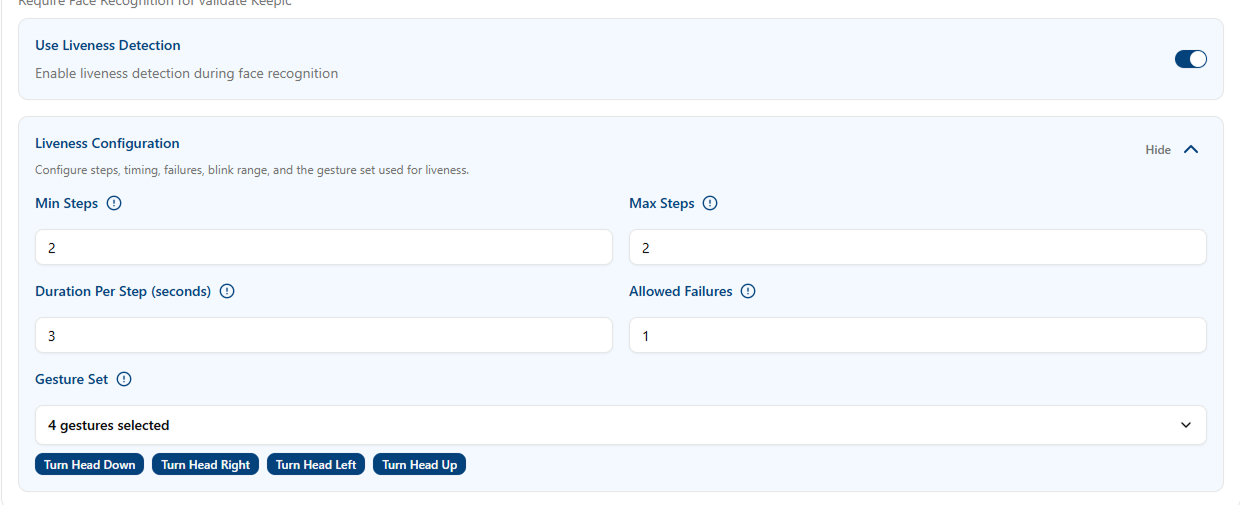
- Use Liveness Detection: Enable liveness detection during face recognition to ensure the user is physically present and prevent spoofing attacks with photos or videos.
Liveness Configuration
The liveness proof challenge can be adjusted with several parameters.
The gestures requested from the user are always random, but you can configure:
- Min Steps: Minimum number of random gestures required to pass the liveness challenge.
- Max Steps: Maximum number of random gestures that can be requested.
- Duration Per Step (seconds): Time the system waits for the user to complete each requested gesture.
- Allowed Failures: Number of failed attempts tolerated before the liveness challenge fails.
- Gesture Set: Multi-select list of available gestures. You can choose which gestures are enabled, and only those selected gestures will appear randomly during the challenge.
Passkey
- Passkey Enabled: Allows users to enroll and login using passkeys, providing a passwordless authentication experience based on FIDO2/WebAuthn standards.