Tenant Configuration
The Tenant Configuration page provides a centralized location to manage the settings, security policies, and read-only configuration details for your tenant.
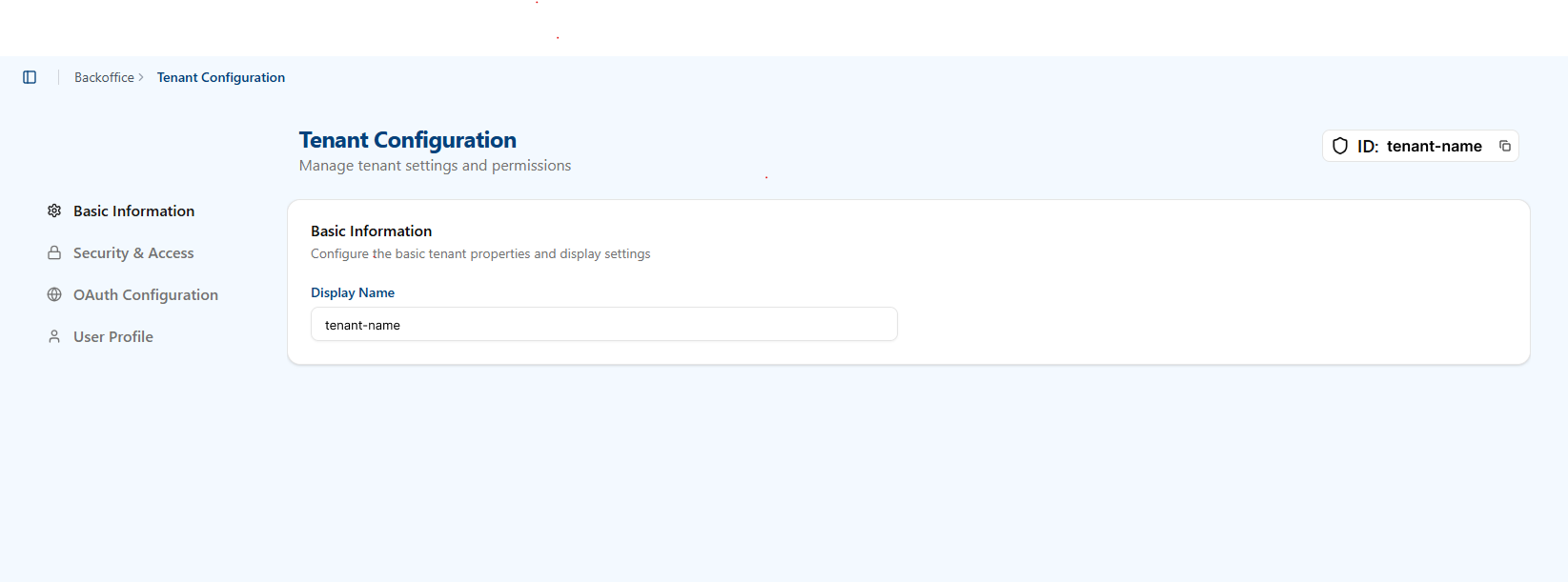
Basic Information
- Display Name: Configure the name for your tenant that may be shown to end-users.
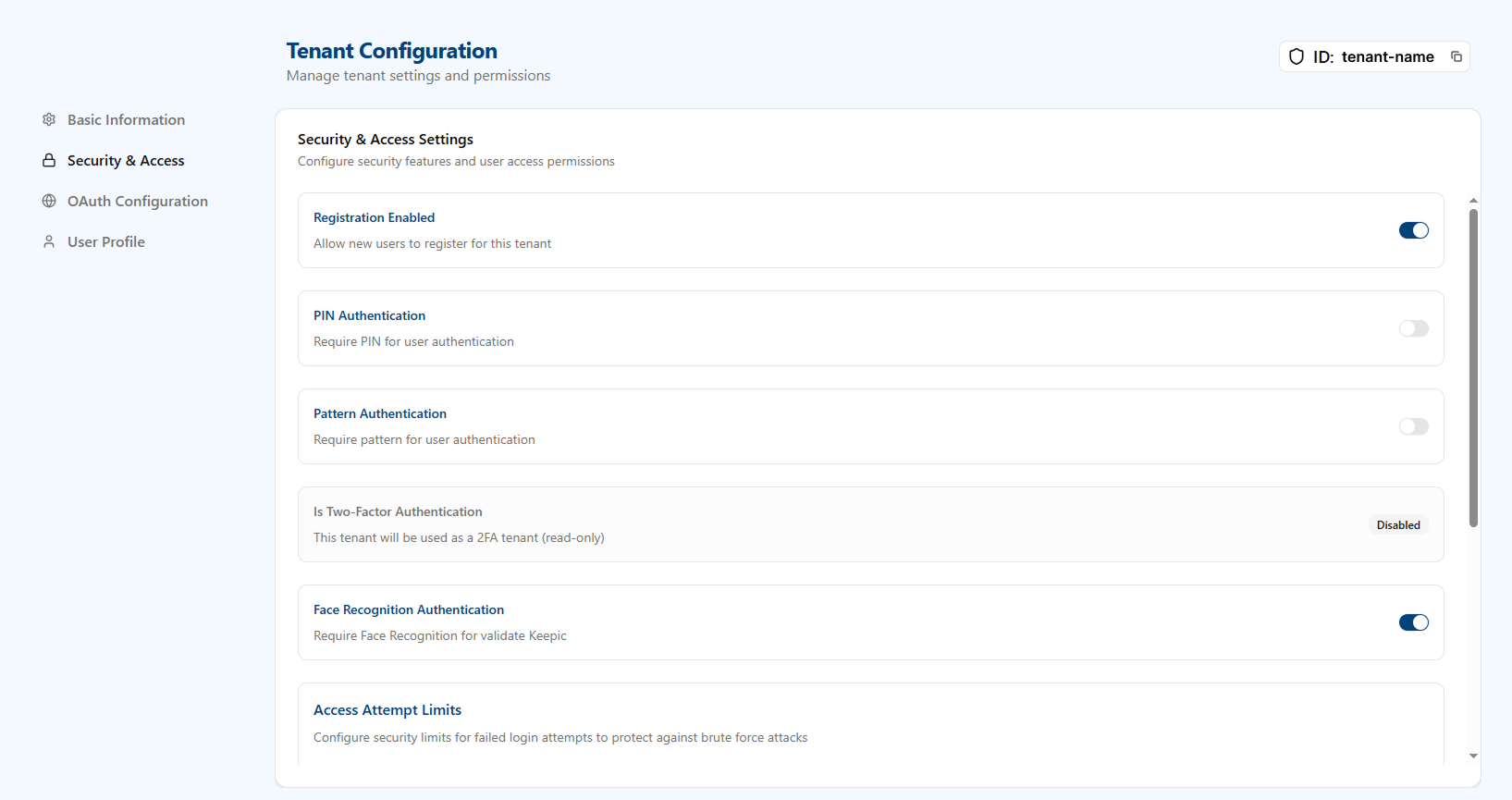
Security & Access Settings
This section allows you to control key security features and user access policies.
- Registration Enabled: A toggle that allows or prevents new users from registering for an account within this tenant.
- PIN Authentication: Requires PIN for user authentication. The PIN can be configured between 3 and 6 digits.
- Pattern Authentication: Requires pattern for user authentication. The pattern can be configured on a 3×3 or 4×4 grid, connecting at least 3 points in any direction and sequence.
- Is Two-Factor Authentication: A read-only status that indicates if the tenant is configured to be used exclusively for 2FA flows.
- Face Recognition Authentication: Requires face recognition to validate the Keepic (user’s image) as part of the authentication flow.
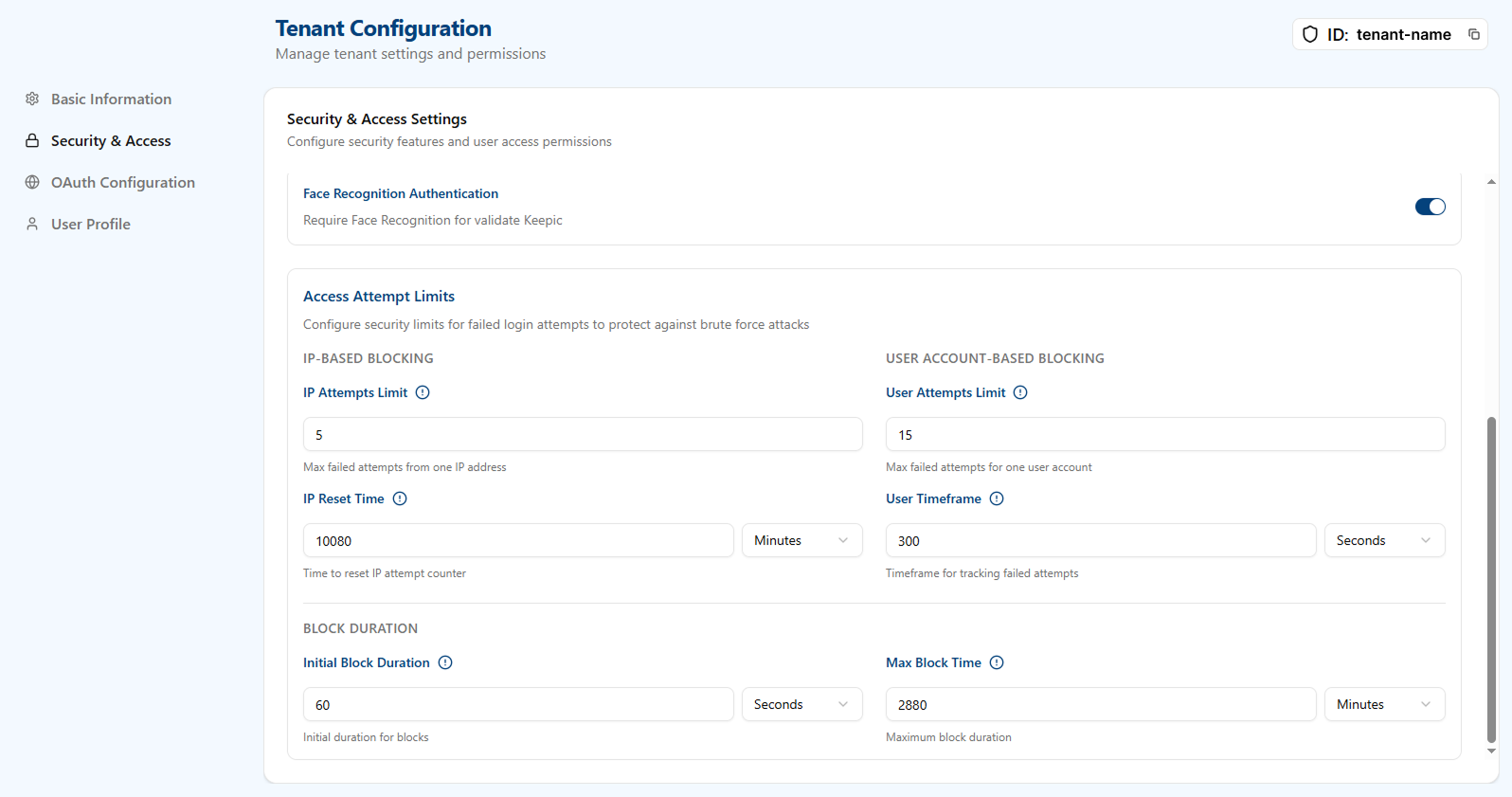
Access Attempt Limits
Configure thresholds and timeframes to protect against brute-force attempts.
IP-based blocking
- IP Attempts Limit: Maximum number of failed login attempts allowed from a single IP address before a block occurs.
- IP Reset Time: The time after which the IP’s failed-attempt counter resets.
- Initial Block Duration: The initial duration applied when an IP is blocked.
User account-based blocking
- User Attempts Limit: Maximum number of failed login attempts for a single user account before a block occurs.
- User Timeframe: The time window used to count failed attempts per user.
- Max Block Time: Maximum duration for which a user account can remain blocked after repeated failures.
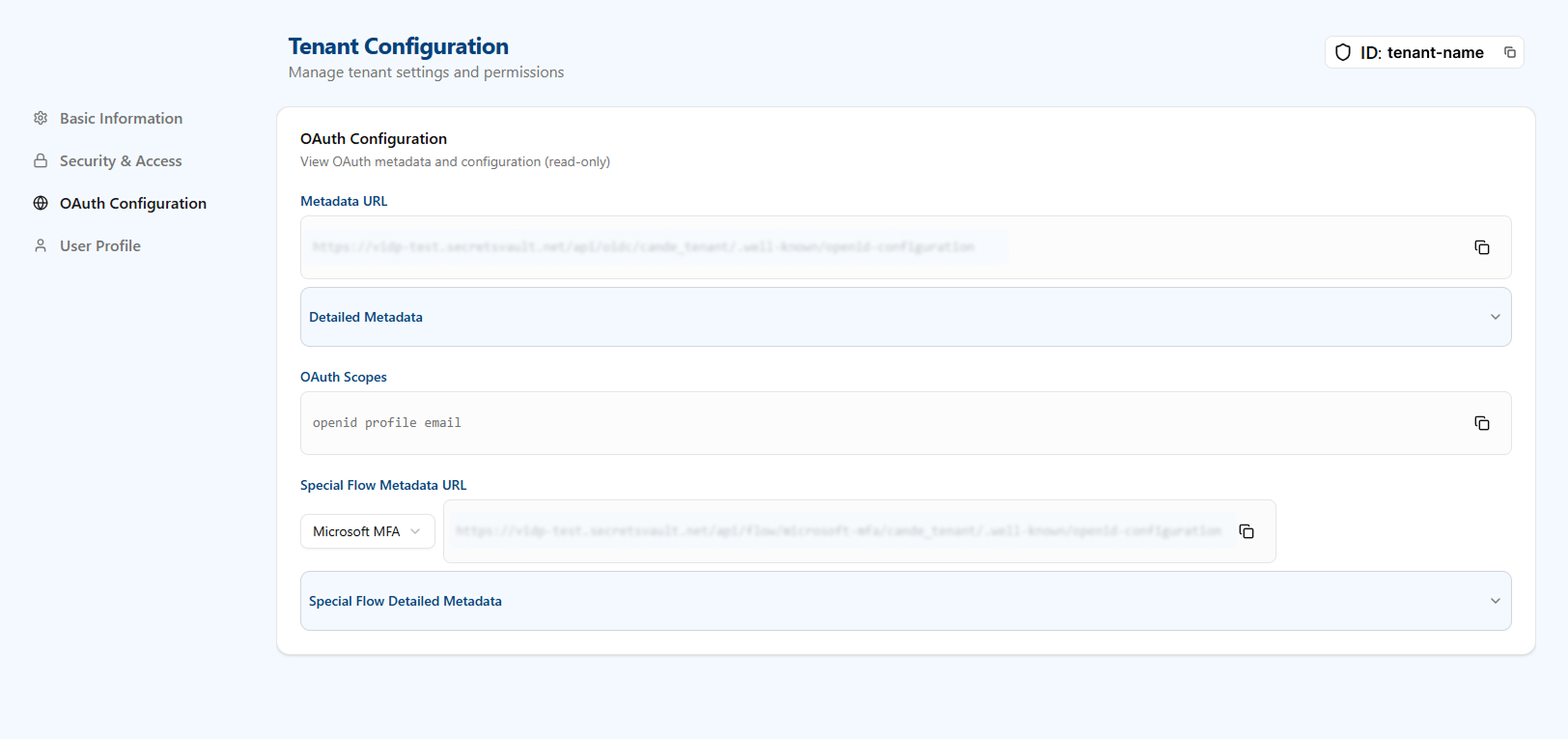
OAuth Configuration
This read-only section exposes your tenant's OIDC metadata and, when applicable, the metadata for a selected special flow. It allows client applications to auto-configure endpoints and validate identity and tokens.
- Metadata URL: Primary OIDC discovery URL (
/.well-known/openid-configuration) containing references to all standard endpoints. - Detailed Metadata (expandable panel): Shows each resolved endpoint individually:
- Authorization: Endpoint used to start the Authorization Code Flow (user redirection).
- Token: Endpoint where the client exchanges the
authorization_codeforaccess_token/id_token. May display "Not configured" if the flow does not expose it. - JWK: URL of the JWKS document with public keys used to verify token signatures.
- Issuer: Issuer identifier which must match the
issclaim in received tokens. - User Info: Endpoint to retrieve additional user claims using a valid
access_token.
- OAuth Scopes: List of scopes supported by the tenant (e.g.,
openid profile email). Determines which claims clients may request. - Special Flow Type: Selector for an integrated flow/template (e.g., "Microsoft MFA"). Choosing a type loads metadata specific to that flow.
- Special Flow Metadata URL: Discovery URL for the selected special flow.
- Special Flow Detailed Metadata (expandable panel): Same structure as Detailed Metadata but for the special flow. Includes Authorization, Token, JWK, Issuer, and User Info endpoints provided by the external flow. Fields may show "Not configured" if the provider does not expose a given endpoint.
Use the primary metadata for standard OIDC integrations, and the special flow metadata only when the client must interoperate with an additional provider (e.g., an external MFA mechanism) without manually redefining endpoints.
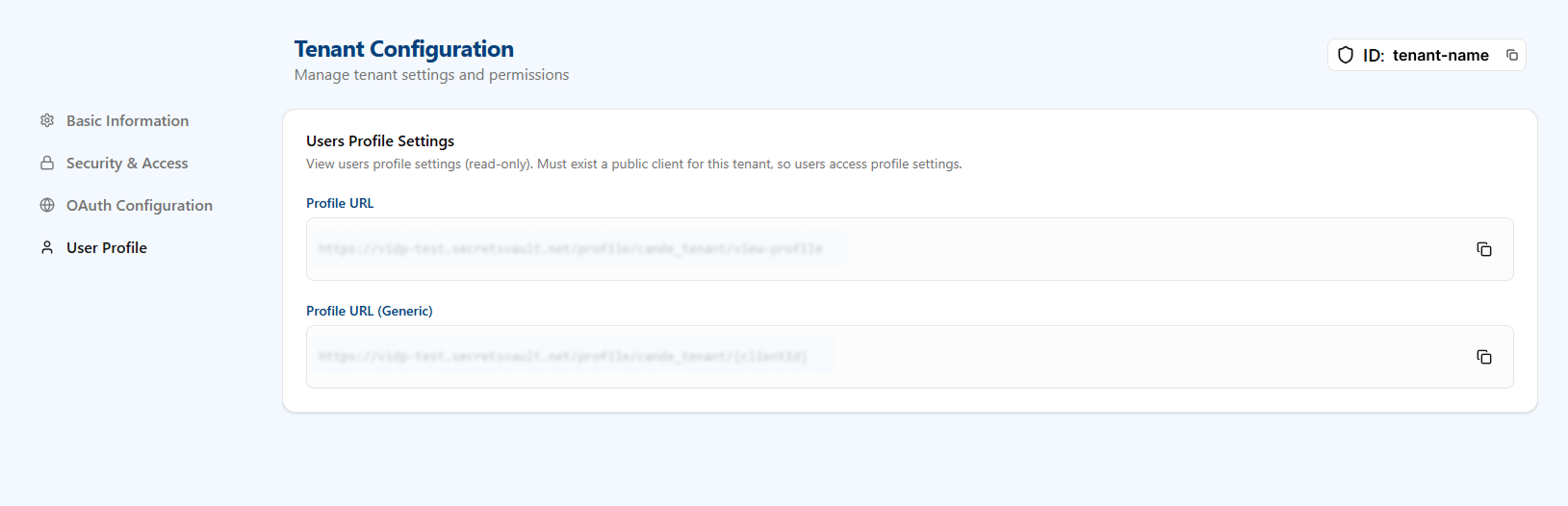
Users Profile Settings
View users profile settings (read-only). A public client must exist for this tenant so that end users can access the profile settings UI.
- Profile URL: Fully resolved URL to the tenant's profile page for the selected public client. Use this link directly when you have a single public client or when linking from within that client.
- Profile URL (Generic): URL template that includes
{clientId}(for example,/profile/<tenant>/{clientId}). Use this when you need to generate links for multiple public clients; replace{clientId}with the ID of the public client initiating the request.
Both fields are read-only and include a copy action in the UI for convenience.