Users Blocked Management
To protect your tenant from brute-force attacks and password spraying, the system automatically monitors failed login attempts. When suspicious activity is detected, the system issues temporary blocks.
As an administrator, you can monitor these blocks in real-time and fine-tune the security thresholds to match your needs.
Viewing Active Blocks
If a user reports they cannot log in due to a "Too Many Requests" error, or if you suspect a coordinated attack, you can view all active restrictions in the Backoffice.
Navigate to: Backoffice > Users Blocked
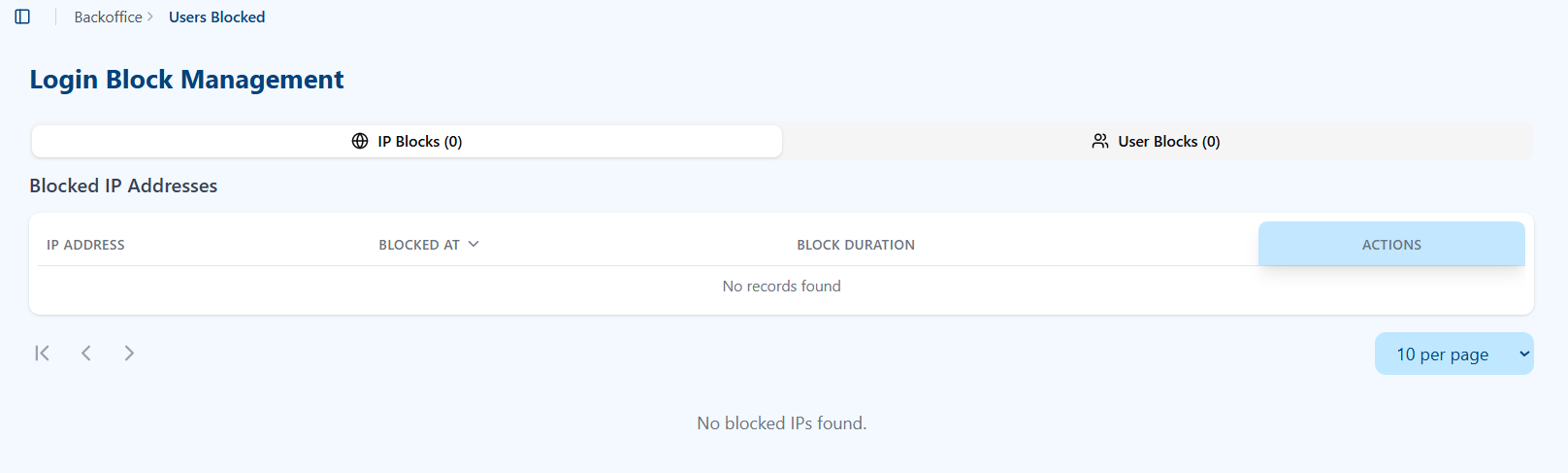
The Management Interface
The dashboard is split into two primary views:
- IP Blocks: Displays devices or networks currently restricted based on their IP address. This usually indicates a high volume of requests from a single source.
- User Blocks: Displays specific user accounts that have been locked. This usually happens when many different IPs try to guess the password for a single account (Distributed Brute-Force).
Information provided:
- IP/User Identifier: Who is being blocked.
- Blocked At: The exact timestamp the restriction began.
- Block Duration: How long the restriction will last.
- Actions: Use this column to manually Unblock a user or IP if you verify the activity was legitimate.
Configuring Security Thresholds
You can customize how aggressive the security system is by adjusting the settings in your Tenant Configuration.
Navigate to: Tenant Config > Rate Limits
1. Access Attempt Limits
The system monitors failed login attempts and triggers blocks based on configurable thresholds. These limits determine how many failed attempts are allowed before a user or IP is blocked.
For detailed information on configuring IP limits, reset times, user attempt thresholds, and timeframes, refer to the Rate Limits section in Tenant Configuration.
2. Block Duration & Exponential Backoff
The system uses Exponential Backoff to discourage persistent attackers. This means each subsequent block is longer than the previous one.
- Initial Block Duration: The length of the very first block (e.g., 60 seconds).
- Max Block Time: The ceiling for the exponential growth. Even if an attacker continues to fail, the block will not exceed this limit (e.g., 2880 minutes or 48 hours).
:::info How Backoff Works If your Initial Block is 60 seconds:
- 1st Block: 60 seconds
- 2nd Block: 120 seconds
- 3rd Block: 240 seconds The duration continues to double until it hits your Max Block Time. :::
Security Strategy Overview
Our system provides two-layer protection to ensure service availability:
Layer 1: Rate Limiting
A broad defense that limits the total number of requests (pings) any single IP can make to our API. This prevents "Denial of Service" attacks from crashing the login page.
Layer 2: Intelligent Throttling
A targeted defense that looks at failed passwords specifically.
- Password Spraying Defense: If one IP tries common passwords against 100 different users, the IP is blocked.
- Brute-Force Defense: If 100 different IPs try to guess the password for one specific user, the User Account is locked to protect the owner.
:::tip Need to clear a block? If a legitimate user is accidentally blocked, you don't need to change these settings. Simply go to the Users Blocked list and click the "Delete" or "Unblock" icon in the Actions column to restore their access immediately. :::