Credentials Reset
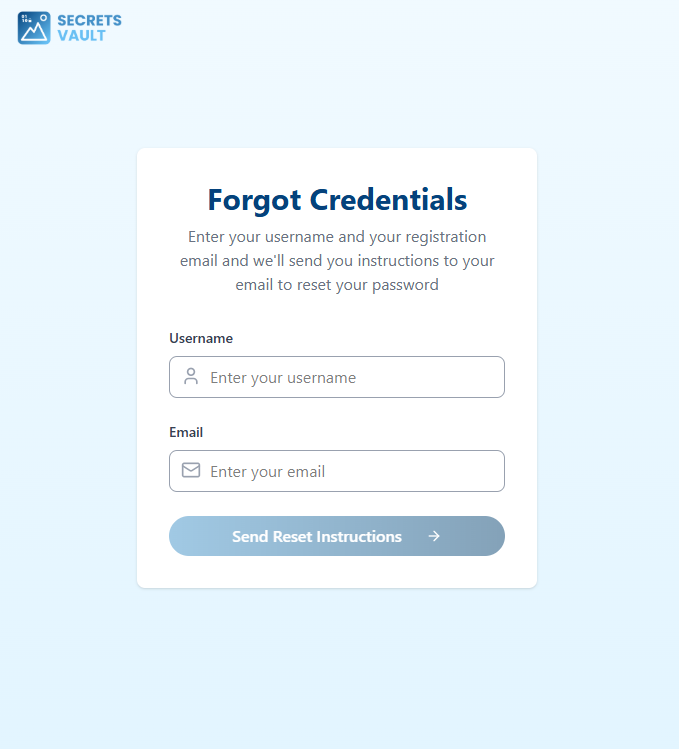
If you do not remember your credentials, you can use the "Forgot Credentials" option on the authentication page.

You will be asked to enter your Username and the Email associated with your account.
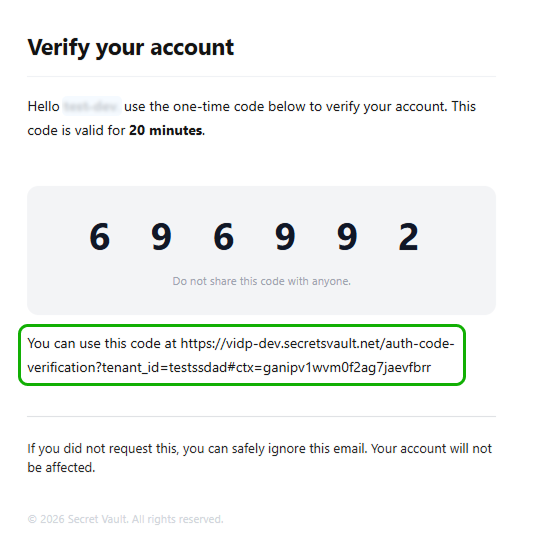
An email containing a secure code, along with a link and instructions, is sent to your registered email address.
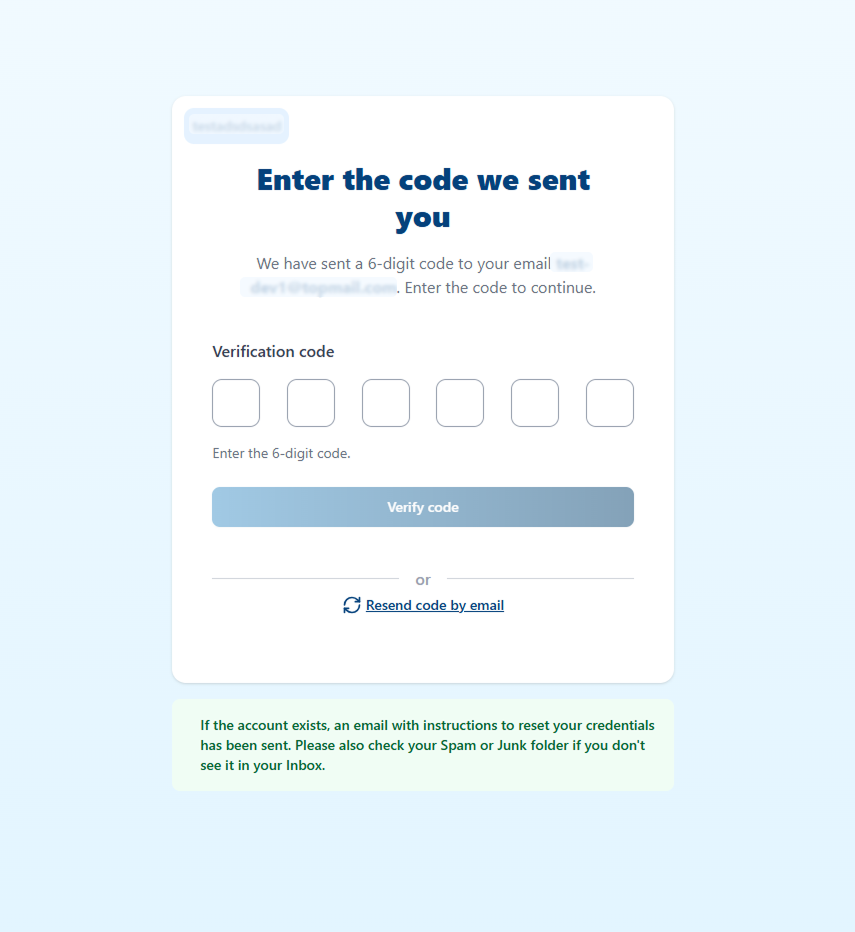
After submitting your username and email, you are directed to a screen to enter the code. The link included in the email takes you to this same screen if you need it.
Once the code is entered and validated, you are redirected to the screen where you set your new credentials.
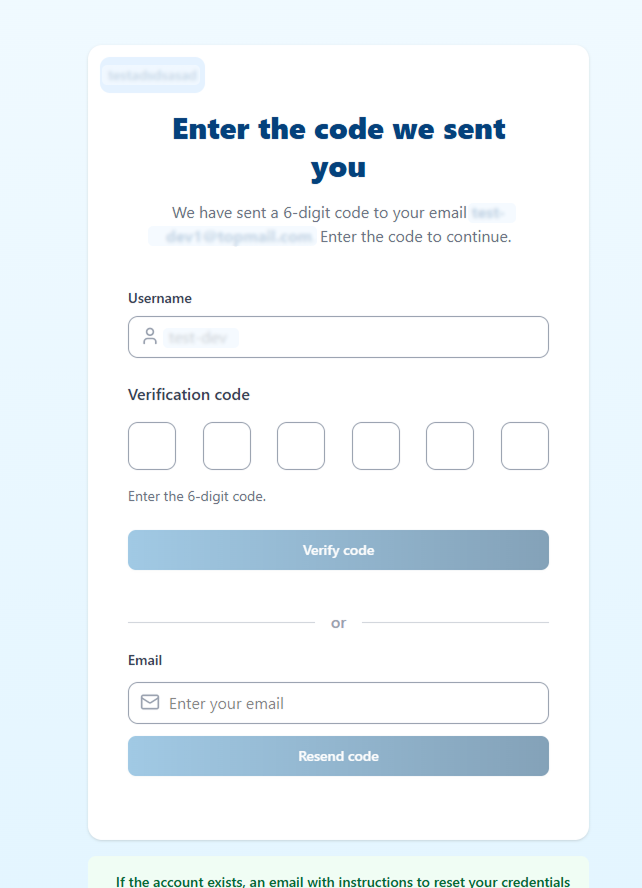
If the code expires, or otherwise stops working, you can request a new one from the code screen by providing your registered email (or your alternative email, if you registered one) and, if required, your username.
Face Recognition authentication
In some tenants, credential reset can include face recognition validation.
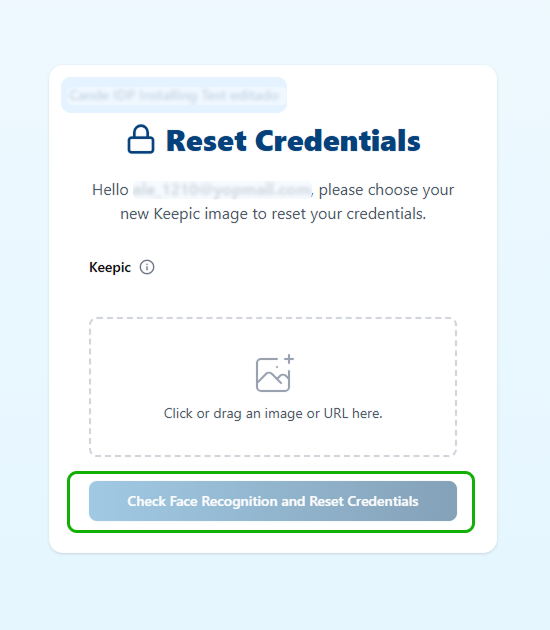
In this mode, the user uploads a Keepic that includes their face. Before completing the reset flow, the system validates that the face in the Keepic matches the person in front of the device camera.
After entering the Keepic, the user must click Check Face Recognition and Reset Credentials to start the face recognition process.
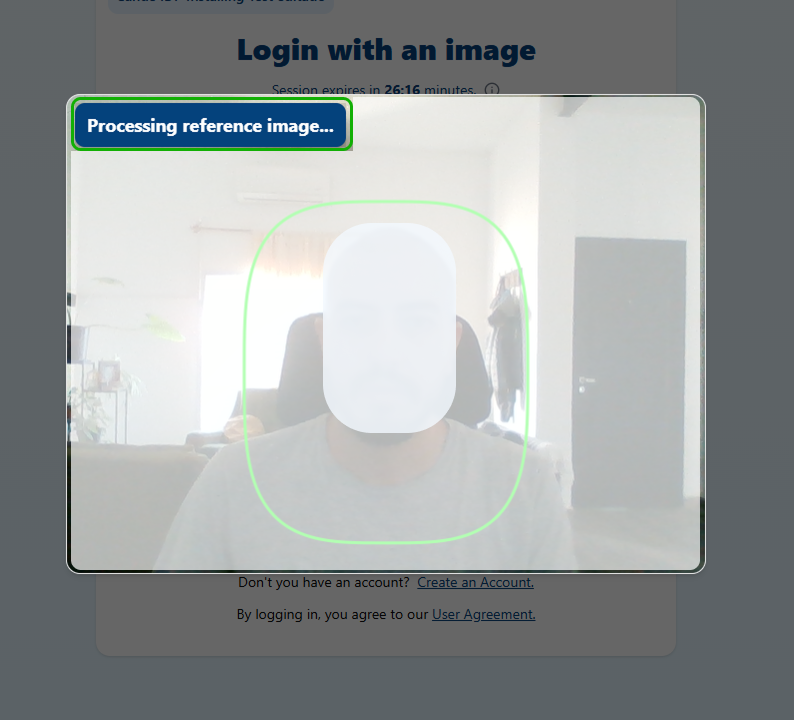
The user must position their face inside the green frame. At the top of the modal, the system shows live feedback as it processes the face recognition.
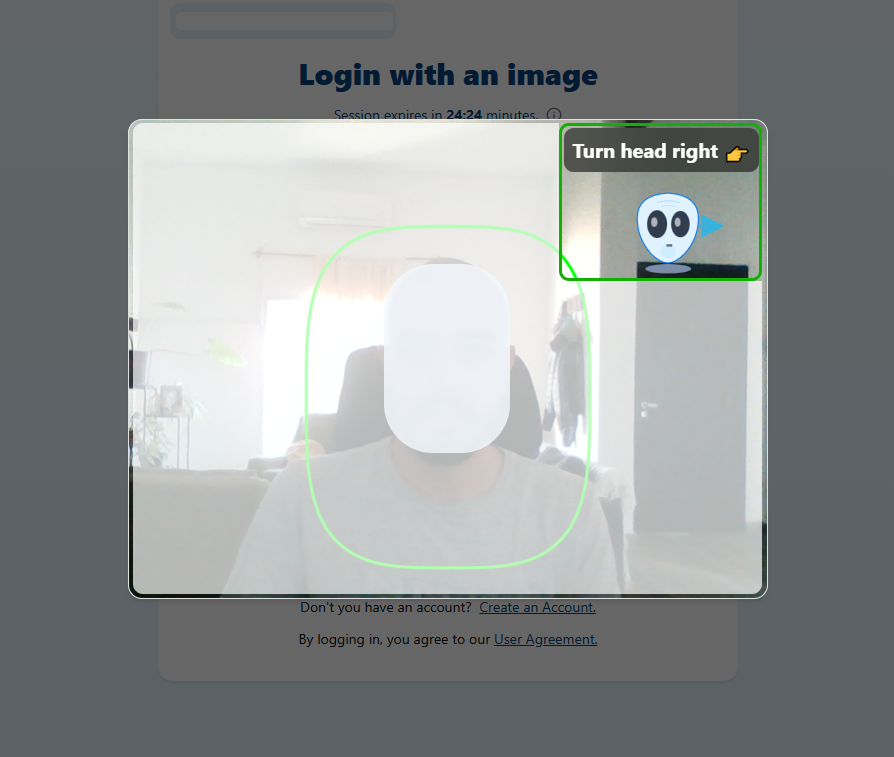
Some tenants may also require a liveness proof. In that case, the liveness challenge starts immediately after face recognition, and the required gestures are displayed at the top of the modal.
| Face Recognition | Liveness |
|---|---|
 |  |