Register
If you do not have an account, you can use the "Create an Account" option, if it has been enabled by the Service Provider.

You will be prompted to provide:
- Your desired Username.
- Your Email address for verification.
- An optional Alternative Email address, which can be used to verify your account and to recover access through the Credentials Reset flow.
- A unique Keepic (Image).
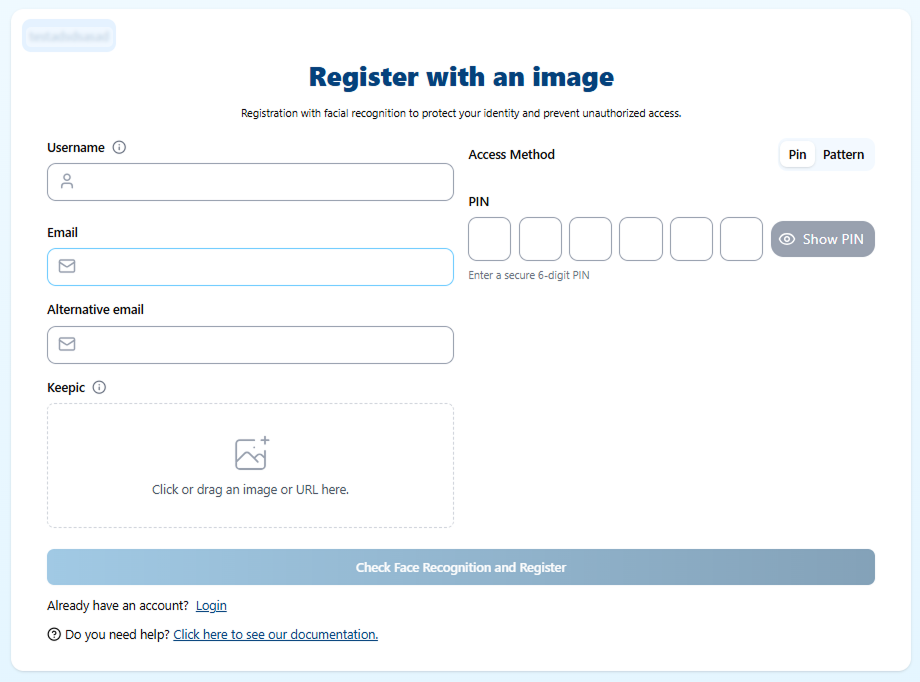
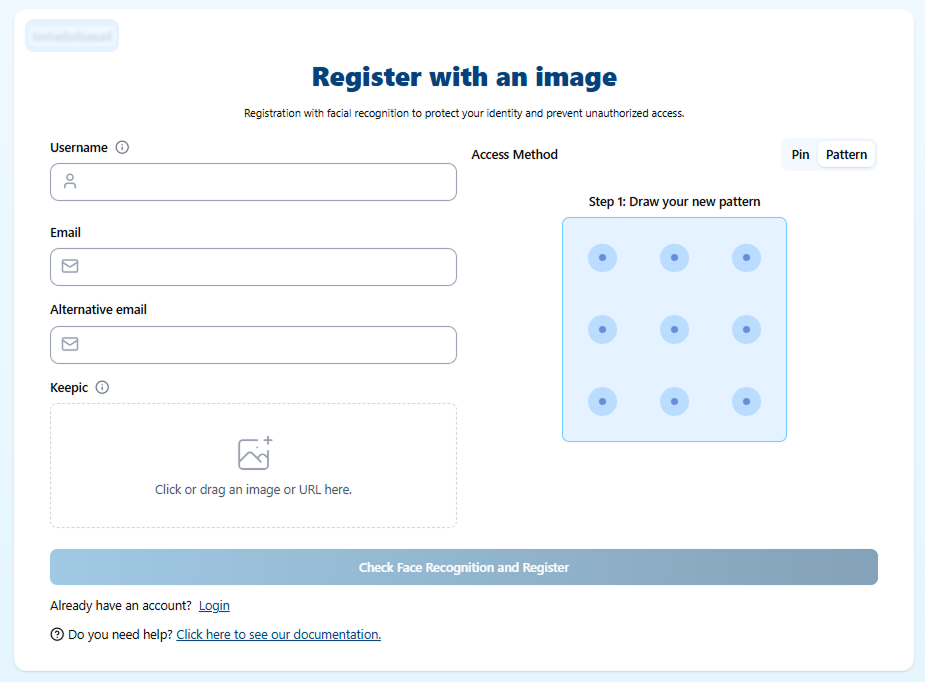
- Your Access Method: Choose between a PIN (3-6 digits) or a custom Pattern (connecting at least 3 points on a 3×3 or 4×4 grid).
PIN
Pattern
Face Recognition authentication
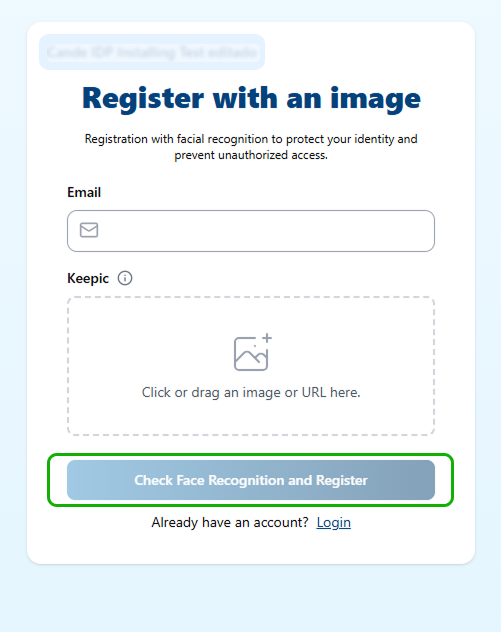
In some tenants, registration can include face recognition validation.
In this mode, the user uploads a Keepic that includes their face. Before completing registration, the system validates that the face in the Keepic matches the person in front of the device camera.
After entering the email and the Keepic, the user must click Check Face Recognition and Register to start the face recognition process.
The user must position their face inside the green frame. At the top of the modal, the system shows live feedback as it processes the face recognition.
Some tenants may also require a liveness proof. In that case, the liveness challenge starts immediately after face recognition, and the required gestures are displayed at the top of the modal.
| Face Recognition | Liveness |
|---|---|
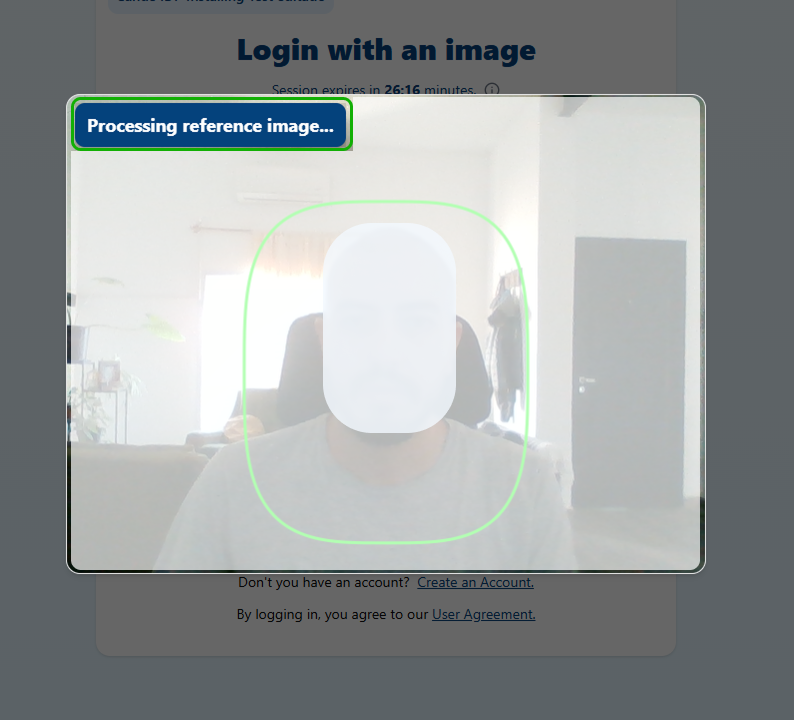 | 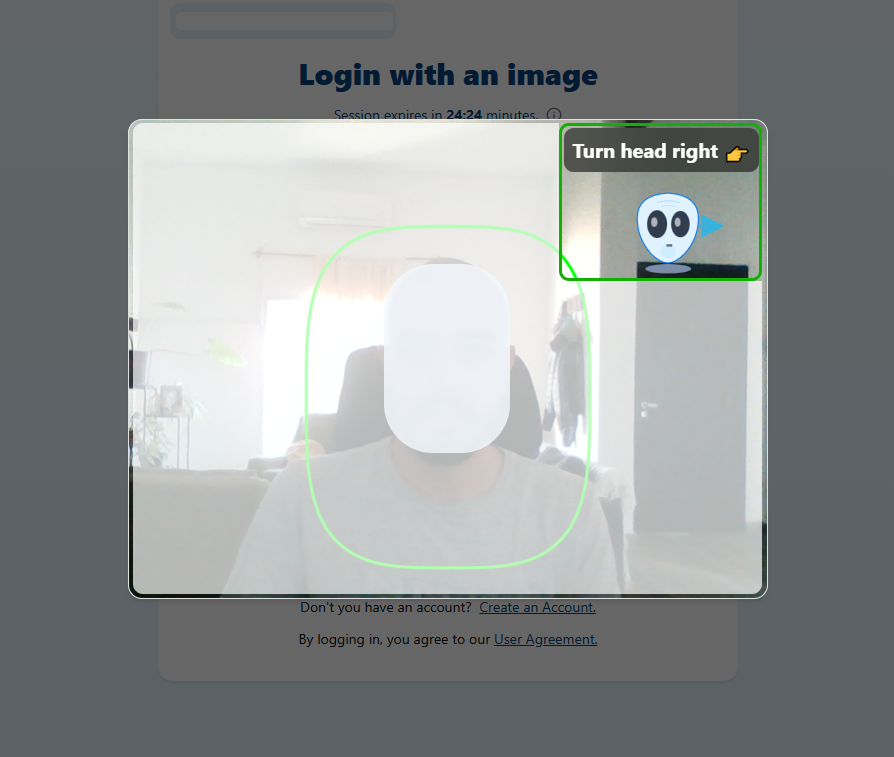 |
Alternative Authentication
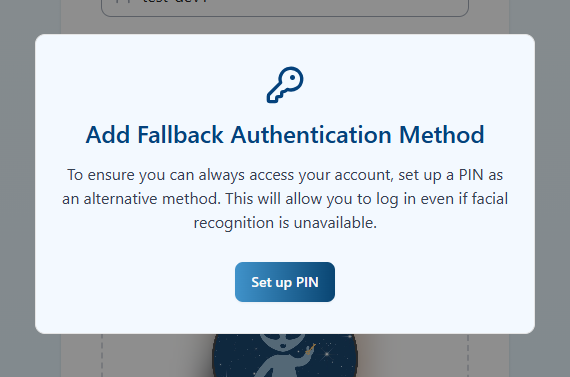
If the tenant allows registering with a PIN as an alternative to biometrics, the registration flow works as follows.
After filling in the registration fields, when the user clicks Register (the point at which the biometric check would normally run), a consent modal is shown — the same one used during login.
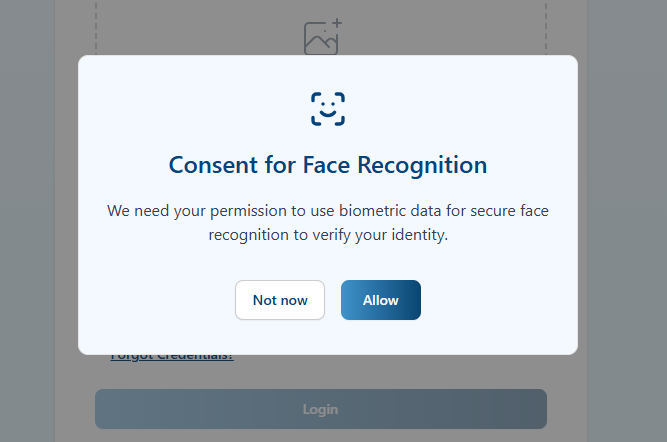
- If the user gives consent, the flow performs the biometric check and completes registration.
- If the user does not give consent, a PIN is registered as the alternative method instead. Depending on the tenant's configuration, the PIN already provided as the Access Method is reused, or an additional input is shown so the user can enter one.
If no camera is detected on the device, the same modal used during login is shown, offering the option to register a PIN as an alternative.
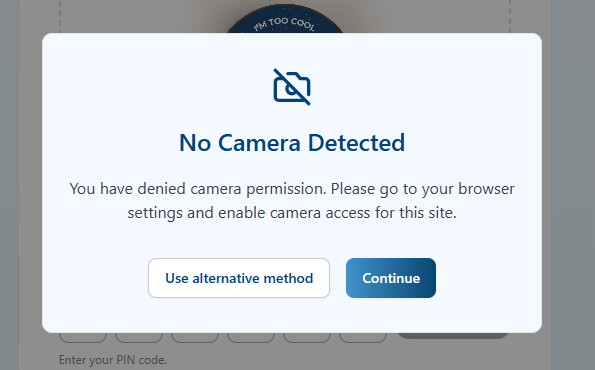
If the tenant does not allow registering an alternative PIN, the no-camera modal does not include that option — it simply states that registration cannot continue without a camera.
Additionally, if the tenant requires a PIN but the Access Method chosen by the user was not PIN or Pattern by default, giving biometric consent does not skip that requirement: the user is prompted to register one, as indicated by a banner.